
Supported: ZOLL X Series monitors with the e-Bridge app on iPhone.
Not currently supported: ZOLL Zenix monitors, and the e-Bridge app on Android.
One-time setup (per iPhone and monitor)
Complete these steps once for each iPhone and monitor pair, ideally before the unit goes into service. Your agency's ZOLL administrator or IT contact may need to help with the monitor settings.
1. Put the iPhone and the monitor on the same Wi-Fi network
e-Bridge finds the monitor over Wi-Fi, so both devices must be connected to the same Wi-Fi network (for example, the unit's in-vehicle Wi-Fi).
2. Pair the iPhone and the monitor over Bluetooth at least once
Turn Bluetooth on for both the iPhone and the X Series monitor, then pair them through the iPhone's Bluetooth settings (Settings > Bluetooth). See your ZOLL X Series operator guide for how to make the monitor visible for pairing.
Important: Turning Bluetooth on is not enough. e-Bridge will not find the monitor until the two devices have been paired at least once. After that first pairing, they do not need to stay connected over Bluetooth, but Bluetooth must remain turned on on both devices.
3. Confirm the Monitor Data button is in your case
Open a new e-Bridge case and look for the Monitor Data button (EKG icon) in the Attachments section. If it is missing, contact GD Support and ask to have it added to your case template. The button is always available in e-Bridge Messages.
Before each transfer
- The 12-lead has been acquired and saved on the X Series monitor.
- The iPhone and the monitor are on the same Wi-Fi network.
- Bluetooth is turned on on both devices.
Attaching the 12-lead to a case
- In e-Bridge, start a new case or open the case you want to attach the 12-lead to.
- In the Attachments section, tap the Monitor Data button (EKG icon).
- e-Bridge searches the Wi-Fi network and lists the X Series monitors it finds.
- Tap your monitor's name (this matches the serial number shown on the monitor).
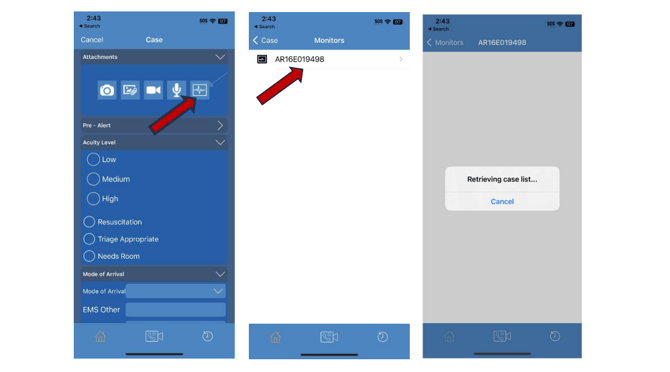
- e-Bridge loads the list of cases saved on the monitor. The most recent case is at the top.
- Tap the case you want. Check that its 12-Leads count is at least 1.
- Wait for the case data (12-leads and vitals) to finish loading.
- Tap Attach in the top-right corner.
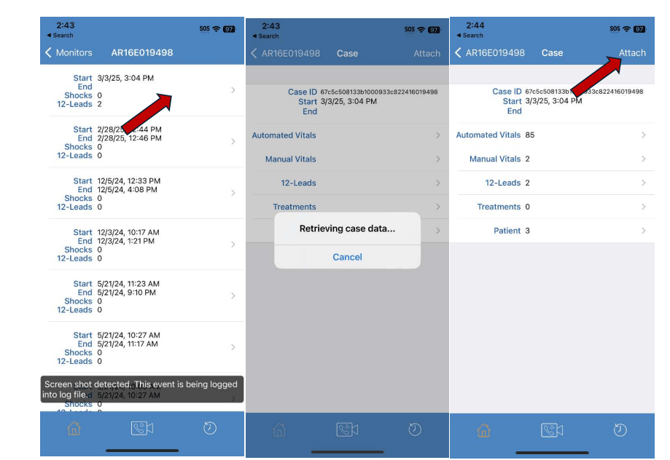
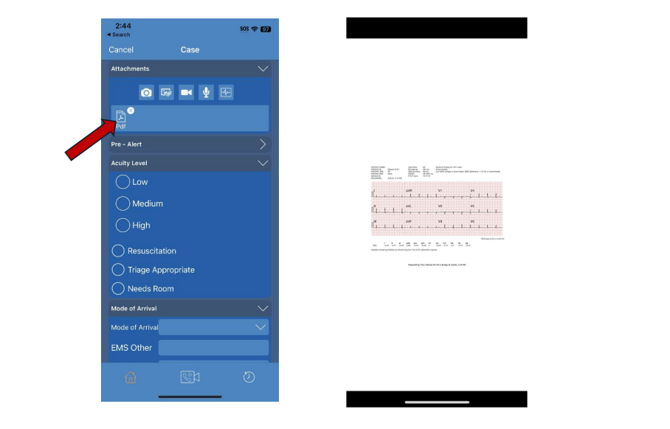
- e-Bridge creates a PDF of the 12-lead and a vitals report and attaches it to the case.
- Tap the PDF in the Attachments section to preview it and confirm it is the correct patient and 12-lead before sending.
Troubleshooting
The monitor does not appear in the Monitors list
- Has this iPhone been paired with this monitor at least once? If not, complete one-time setup step 2.
- Is Bluetooth turned on on both devices?
- Are both devices on the same Wi-Fi network? Check the network name on the iPhone and on the monitor.
- Is the monitor a ZOLL Zenix? Zenix is not currently supported.
Check Local Network access: If "Don't Allow" was tapped when the iPhone asked to let e-Bridge find devices on your local network, e-Bridge cannot see the monitor. Go to Settings > e-Bridge and make sure Local Network is turned on, then try again.
There is no Monitor Data button in my case
Contact GD Support to have it added to your case template.
The case I picked has no 12-lead
Go back and choose a case with a 12-Leads count of 1 or more. The newest case is at the top.
Still not working
Contact GD Support at 201-313-7075 and tell them the monitor model, the iPhone's e-Bridge version, and which step failed.