
CAREpoint 3 Workstation Overview
Click HERE to download and watch a comprehensive CAREpoint 3 end user training video.
Hardware Overview
%20(1).png?width=670&height=377&name=Handset%20with%20Push%20To%20Talk%20button%20(PTT)%20(1).png) Understanding the Dashboard
Understanding the Dashboard
%20(2)-1.png?width=670&height=309&name=Handset%20with%20Push%20To%20Talk%20button%20(PTT)%20(2)-1.png)
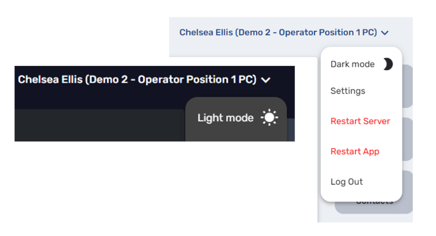
Tip: You can UPDATE the CAREpoint 3 home screen from Light Mode to Dark Mode.
%20(3)-1.png?width=670&height=366&name=Handset%20with%20Push%20To%20Talk%20button%20(PTT)%20(3)-1.png)
Communication Panel
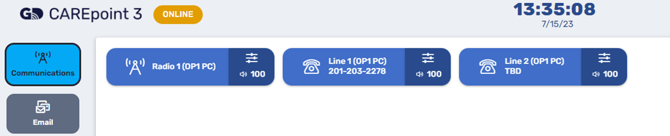
- Above are the resource buttons on the Communication Panel. Each represents a phone line or radio within the ED. A blue button, is an active, available resource.
 Represents a radio button
 Represents a phone line
%20(5)-1.png?width=670&height=125&name=Handset%20with%20Push%20To%20Talk%20button%20(PTT)%20(5)-1.png)
-
When a line is actively being used,
it will be solid green. -
When a line is placed on hold, it will be
flashing yellow.
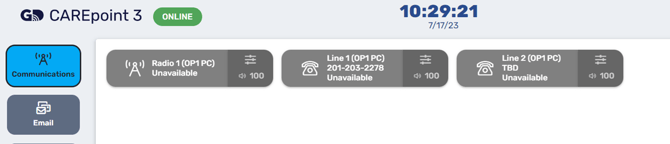
- Above are the resource buttons on the Communication Panel, you’ll notice they are greyed out, meaning unavailable and Inactive.
- If you have a grey resource you’ll need to contact GD for support.
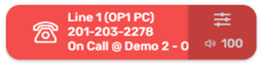
A solid red resource button means that resource is in use on another CAREpoint Operator Position.
Action Panel - Dialpad
-
The Action Panel is a menu, when selected each will open up a new command
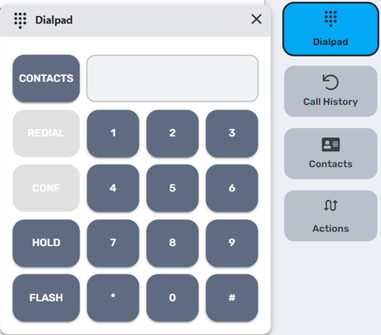
-
- The Dialpad opens a keypad that functions just like a phone for manually dialing phone #’s for outgoing calls.
- Hold, Redial and Flash also function just like a phone.
- Selecting “CONTACTS” on the keypad will open the Contacts Panel.
Action Panel - Call History
-
The Action Panel is a menu, when selected each will open up a new command
%20(7)-1.png?width=670&height=262&name=Handset%20with%20Push%20To%20Talk%20button%20(PTT)%20(7)-1.png)
-
- Call history will open the history of recent calls. By default, the last 24 hours of calls are available.
- You can replay older calls, or share them via email if configured.
Action Panel - Contacts
- The Action Panel is a menu, when selected each will open up a new command
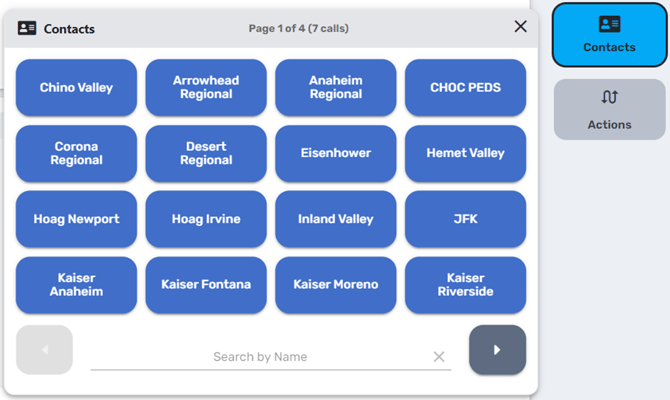
- Contacts menu option will open a list of contacts facilitating quicker outgoing calls.
- Click the contact name you want to call, then it will automatically select a phone line and begin dialing the #.
- You can search by name below the list of contacts should you have more than page.
Action Panel - Actions
-
The Action Panel is a menu, when selected each will open up a new command.
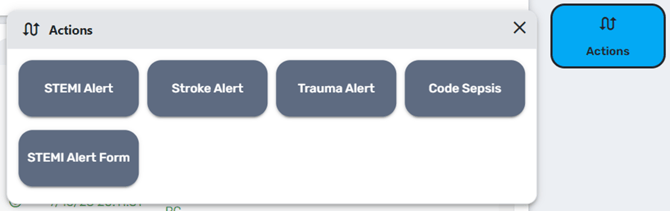
- Actions is a way to quickly create an e-Bridge alert.
- Below you’ll see examples of the types of alerts you can quickly send, STEMI, Stroke, etc.
- Clicking will launch e-Bridge and begin the creation of those alerts.
User History Log
-
The User History Log is a quick reference for seeing the login history of the workstation.
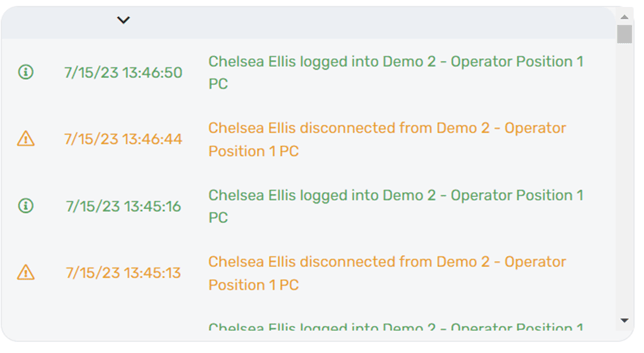
- This will also display the history of all the components of the system when the connect or disconnect to the CAREpoint 3 Server.
- This is mainly used by GD for troubleshooting purposes.
Audio Control Panel
- The Audio Control Panel controls the volume for actively in use resources and inactive resources.
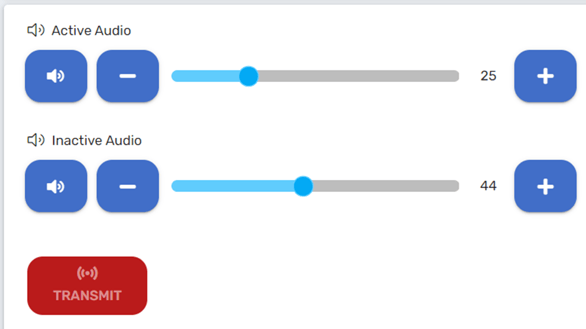
- Active Audio is the audio of the call you’re currently talking to, this would be the Resource Button that is solid green.
- Inactive Audio is the audio of any other resource NOT in the Active (solid green) state, such as:
- Incoming radio calls (Flashing Green).
- Calls on hold (Flashing Yellow).
-
- Calls answered on another Operator Position (Solid Red) if not configured to cross mute with this Operator Position.
- Muting Resources
- Muting Active Audio will mute the Active Speaker, but you will still hear the call in the Handset earpiece speaker.
- Muting the Inactive Audio will mute the Inactive speaker and you will no longer hear any Inactive Audio.
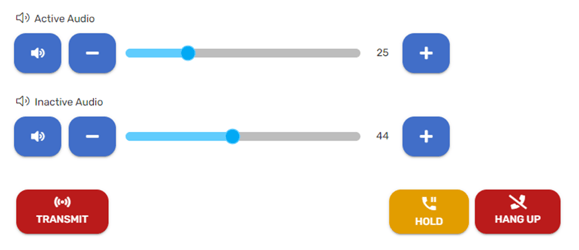
- When resources are active, the Hold and Hang Up buttons will populate below the volume controls.
- When a resource is active, the Transmit button is highlighted You can transmit with this, by clicking to speak, releasing to listen.
- However, the Transmit button will only be visible if an optional CAREpoint Microphone is in use.
Launch Panel
-
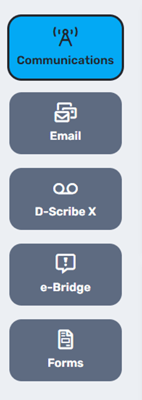
The Launch Panel is another menu, when selected each will open up a new command.
-
-
- Communications - The home screen where radio and phone resources are labeled and visible.
- Email - primarily used for receiving of emails, but also be configured to allow for sending email. It is commonly used for receiving12-lead EKG's from EMS.
- D-Scribe X - It will launch a web browswer to view (calls/transmissions older than 1 hour) - Individual credentials will be required to access.
- e-Bridge - A quick launch tool to bring e-Bridge app to the front of the screen (if configured).
- Forms: If your facility chooses to do so, a GD created electronic format of a patient Intake Form can be added here for documenting EMS patient reports.
-
CAREpoint Email
-
This is the Email home screen.
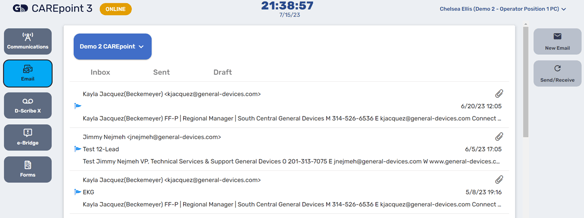
- From here you can navigate the Inbox, Sent folder, and Drafts.
- On the right is the menu for composing new emails and refreshing the inbox by pressing Send/Receive.
- Including a contact list and the ability to include attachments, etc.
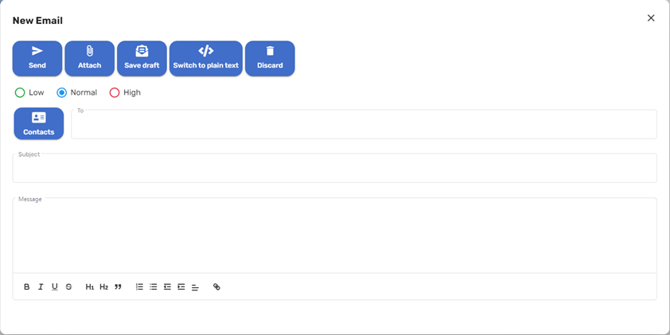
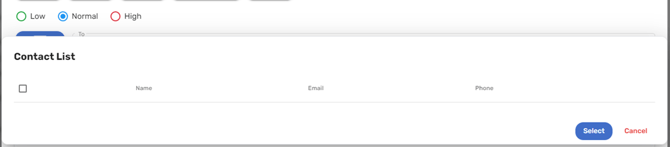
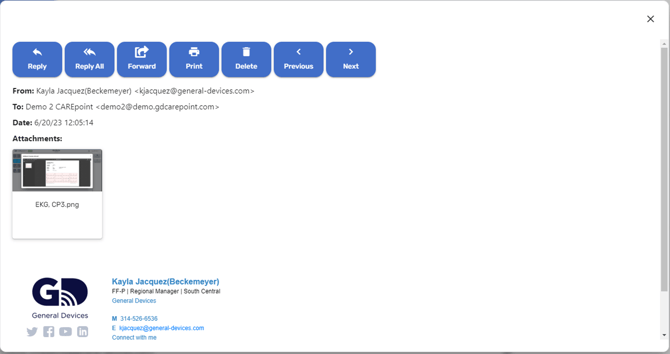
- Click to open an email from the inbox.
- You will see who it is from, the date and time sent, the message body if present as well as any attachments.
- In this case the 12-Lead EKG that is sent by EMS.
- Also use the blue buttons to navigate standard email functions, including reply, forward, print, delete and scrolling through other Emails.
Answering Incoming Calls
- When a call/transmission comes in, the resource button will be flashing green and there will be an audible and visual alarm (if configured)
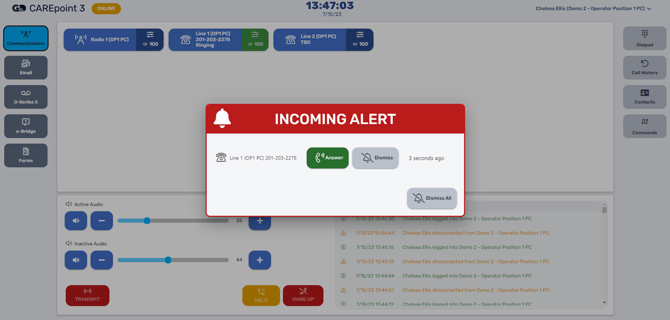
- It will show what resource the alert is coming in on, and give you the option to “Answer” or “Dismiss”.
- Answering will connect you to the other party.
- Dismissing will end the audible alarming until you choose to manually answer the call.
- You can also answer the call by picking up the Handset out of the cradle.
Answering Alerts with the Headset
- When an alert comes in the screen with show the following: Flashing Green Resource on the Communication Panel.
%20(9).png?width=670&height=377&name=Handset%20with%20Push%20To%20Talk%20button%20(PTT)%20(9).png)
- The Incoming Call pop up displaying the resource the alert is active on and giving the options to Answer or Dismiss.
- You can pick up the Handset, shown here, and that will also Answer the call.
- You will Press to talk & Release to listen.
- All communications occur with Push To Talk (PTT) functionality, whether it is a radio or phone resource.
- You can either hang up the handset to end the call, or double click the red Hang Up button on the Audio Control Panel and then hang up the handset to end the call.
%20(10).png?width=670&height=377&name=Handset%20with%20Push%20To%20Talk%20button%20(PTT)%20(10).png)