
This guide walks you through configuring the e-Bridge Dashboard on a PC, step by step. Reference screenshots accompany each step. If you run into any issues or need a hand, our support team is ready to help.
Applies to: e-Bridge Dashboard on Windows PC devices
Before you begin- Your e-Bridge Dashboard account credentials (provided by General Devices).
- The e-Bridge application installed on the device — see Step 1.
- The Settings admin password:
GDebridge— you'll enter this in Step 3.
Step 1: Download and install the application
Install the e-Bridge application on your device following the steps provided by your IT department.
Step 2: Log in
- Open the e-Bridge application.
- Log in with the credentials provided for your e-Bridge Dashboard account.
- Select Remember account name and password.
Important: Enabling “Remember account name and password” keeps the Dashboard signed in automatically after a restart — essential for an unattended dashboard display.
Step 3: Open Settings
- In the bottom-right corner of the application, click the Settings (gear) icon.
- When prompted for the admin password, enter
GDebridge.

Step 4: Adjust alarm settings
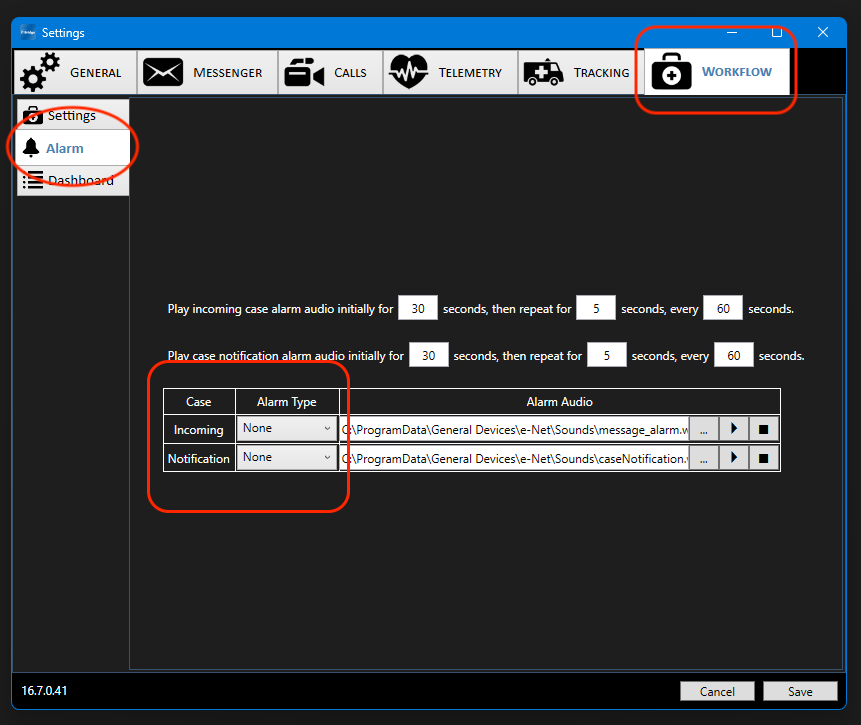
- Select Workflow from the top menu, then Alarm from the side menu.
- Set the Alarm Type to None for both Incoming and Notification cases.
Tip: Setting alarms to None keeps the dashboard silent, so it displays activity without audible alerts on the shared screen.
Step 5: Enable the dashboard window & ETA values
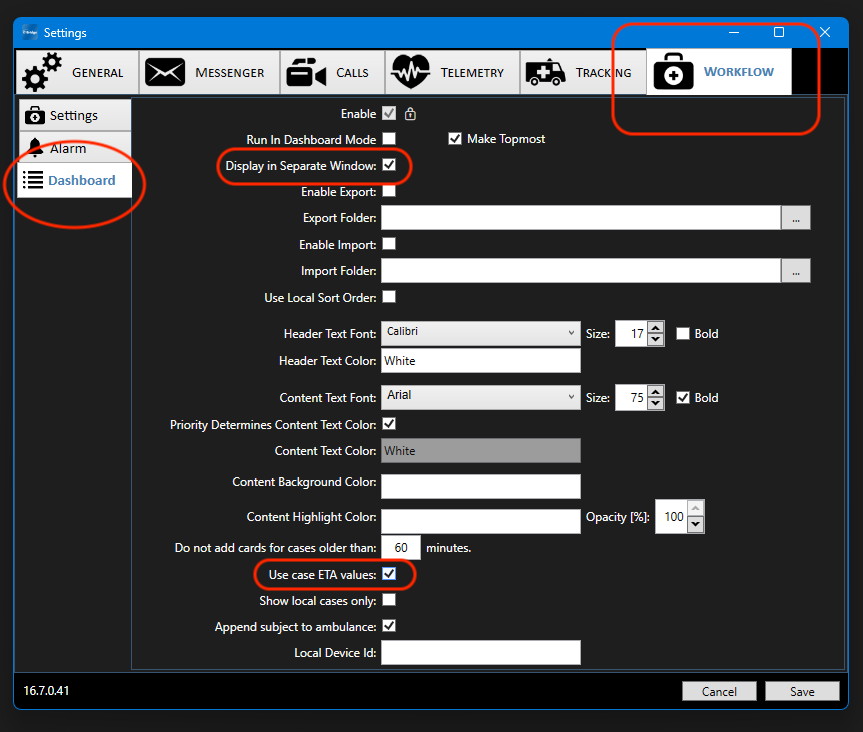
- In the same Settings window, select Dashboard from the side menu.
- Check Display in Separate Window and Use case ETA values.
Step 6: Set startup preferences
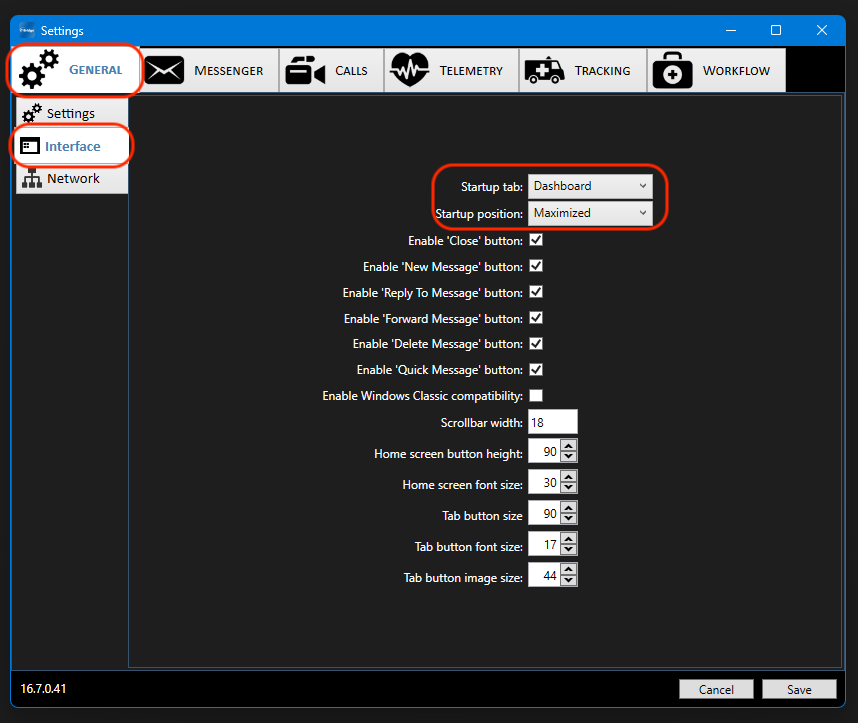
- Select General from the top menu, then Interface from the side menu.
- Set the Startup Tab to Dashboard and the Startup Position to Maximized.
Tip: These settings ensure the device opens directly to a full-screen Dashboard every time it starts.
Step 7: Save your changes
Once all changes are complete, click the Save icon at the bottom-right of the Settings window to apply them.
Step 8: Restart the application
After saving, restart the e-Bridge application so the new settings take effect. The device will reopen directly to the Dashboard.