---
title: How to Edit Cases in D-Scribe X
description: D-Scribe X allows authorized users to update case data after a case has been closed. This capability ensures data accuracy and supports downstream reporting, auditing, and quality review workflows. This article outlines how to access a case, make edits, and review the associated audit trail.
---
[Skip to content](https://connect.general-devices.com/knowledge-base/how-to-edit-cases-in-d-scribe-x#main-content)
[](https://general-devices.com/)
- [About GD](https://general-devices.com/about-us/)
Show submenu for About GD
- [GD Solution Suite](https://general-devices.com/gd-solution-suite/)
- [Find Your Regional Manager](https://general-devices.com/find-your-rep/)
- [Who We Serve](https://general-devices.com/who-we-serve/)
Show submenu for Who We Serve
- [Hospitals](https://general-devices.com/hospitals/)
- [EMS](https://general-devices.com/ems/)
- [Healthcare Network](https://general-devices.com/healthcare-network/)
- [Customer Support](https://general-devices.com/customer-support/)
Show submenu for Customer Support
- [Technical Support](https://general-devices.com/technical-support/)
- [Customer Success](https://general-devices.com/customer-success/)
- [News & Resources](https://general-devices.com/resources/)
Show submenu for News & Resources
- [Blogs](https://general-devices.com/blogs/)
- [Press Releases](https://general-devices.com/press-releases/)
- [Customer Stories](https://general-devices.com/customer-stories/)
Open main navigation
Close main navigation
- [About GD](https://general-devices.com/about-us/)
Show submenu for About GD
- [GD Solution Suite](https://general-devices.com/gd-solution-suite/)
- [Find Your Regional Manager](https://general-devices.com/find-your-rep/)
- [Who We Serve](https://general-devices.com/who-we-serve/)
Show submenu for Who We Serve
- [Hospitals](https://general-devices.com/hospitals/)
- [EMS](https://general-devices.com/ems/)
- [Healthcare Network](https://general-devices.com/healthcare-network/)
- [Customer Support](https://general-devices.com/customer-support/)
Show submenu for Customer Support
- [Technical Support](https://general-devices.com/technical-support/)
- [Customer Success](https://general-devices.com/customer-success/)
- [News & Resources](https://general-devices.com/resources/)
Show submenu for News & Resources
- [Blogs](https://general-devices.com/blogs/)
- [Press Releases](https://general-devices.com/press-releases/)
- [Customer Stories](https://general-devices.com/customer-stories/)
- [Schedule A Demo](https://general-devices.com/schedule-a-demo/)
[Schedule A Demo](https://general-devices.com/schedule-a-demo/)
How can we help you?
- There are no suggestions because the search field is empty.
1. [Knowledge Base](https://connect.general-devices.com/knowledge-base?hsLang=en)
2. [D-Scribe X](https://connect.general-devices.com/knowledge-base/d-scribe-x?hsLang=en)
# How to Edit Cases in D-Scribe X
## D-Scribe X allows authorized users to update case data after a case has been closed. This capability ensures data accuracy and supports downstream reporting, auditing, and quality review workflows. This article outlines how to access a case, make edits, and review the associated audit trail.
#### **Navigating to the Case**
1. Log in to **D-Scribe X**.
2. From the left navigation panel, select **Cases**.
3. The **Case List** will display all available cases.
4. Click on the **case** you wish to review or edit.
#### **Understanding Case Edit Status**
When a case is closed, the **Save** button inside the case will appear **blue**.
- A **blue Save button** indicates that the case is eligible for editing.
- **NOTE: If the Save button is disabled or grayed out, the case cannot be modified. A case needs to have been closed in order to edit.**
#### **Editing Case Fields**
1. Open the desired case.
2. Locate the field you want to update (e.g., barcode, oxygen, nitro, or any other case control).
3. Enter or modify the value as needed.
4. Click **Save**.
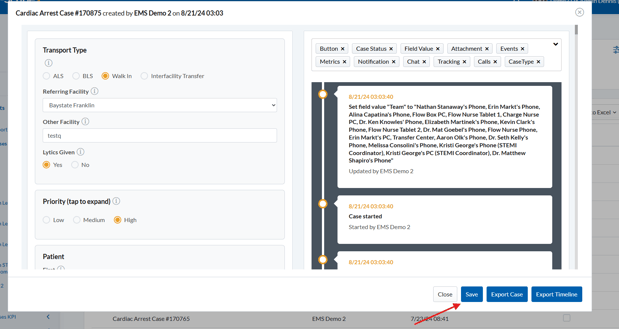
1. The system immediately applies the update and records the edit.
You can edit *any* control or input within the case, subject to user permissions.
#### **Viewing Edit History**
D-Scribe X automatically logs all case modifications for compliance and traceability.
### **Change History Panel**
After saving an update:
- The **Change History** section will display the modified field, the new value, and the timestamp.
### **Case Events Audit Log**
All edits are also captured under **Case Events**, including:
- The field updated
- The previous and new values
- The user who performed the edit
- The exact time of the update
This provides a complete audit trail for internal governance and quality assurance programs.
#### **Use Cases for Editing**
Common examples include:
- Correcting or adding a **barcode value**
- Updating medication details such as **Nitro**
- Adding or adjusting oxygen administration data
- Fixing clerical errors or updating missing information post-review
#### **Summary**
Editing a closed case in D-Scribe X is straightforward and fully audited. Once a case is opened from the Case List and the Save button appears blue, users can update any case field, apply the changes, and reference the system-generated change history and event logs for validation.
- [e-Bridge](https://connect.general-devices.com/knowledge-base/e-bridge?hsLang=en)
- [CAREpoint 3](https://connect.general-devices.com/knowledge-base/carepoint-3?hsLang=en)
- [D-Scribe X](https://connect.general-devices.com/knowledge-base/d-scribe-x?hsLang=en)
- [CAREpoint 2](https://connect.general-devices.com/knowledge-base/carepoint-2?hsLang=en)
- [Product Updates](https://connect.general-devices.com/knowledge-base/product-updates?hsLang=en)
- About GD
- [GD Solution Suite](https://general-devices.com/gd-solution-suite/)
- [Find Your Regional Managers](https://general-devices.com/find-your-rep/)
- Who We Serve
- [Hospitals](https://general-devices.com/hospitals/)
- [EMS](https://general-devices.com/ems/)
- [Healthcare Network](https://general-devices.com/healthcare-network/)
- Customer Support
- [Technical Support](https://general-devices.com/technical-support/)
- [Customer Success](https://general-devices.com/customer-success/)
- News & Resources
- [Press Releases](https://general-devices.com/press-releases/)
- [Blogs](https://general-devices.com/blogs/)
- [Customer Stories](https://general-devices.com/customer-stories/)
- Contact Us
- [Email Us](mailto:innovation@general-devices.com)
- [Schedule a Demo](https://general-devices.com/schedule-a-demo/)
- [201-313-7075](tel:+12013137075)
- [Privacy Policy](https://general-devices.com/privacy-policy/)
[](https://general-devices.com/)
© 2026 General Devices, Inc. All rights reserved.